
The Seat Ateca infotainment system allows you to personalise its menus and screen layouts so that your preferred functions are easier to find and operate. By arranging the available shortcuts and adjusting the display to suit your needs, you can reduce the number of steps required to access frequently used features. The available customisation options depend on the infotainment system installed in the vehicle.
The main menu contains function buttons that provide access to the infotainment applications and their associated features. These buttons serve as the starting point for opening individual applications, changing their settings and navigating between the functions supported by the system. You can organise certain elements of the interface to make the functions you use most often more accessible.
Customise shortcuts
Customisable shortcuts are displayed along the bottom of the infotainment screen, providing direct access to selected system functions. You can modify these shortcuts to reflect your preferences by removing existing entries, replacing them with other available applications or changing their position. This allows you to keep frequently used functions within easy reach without repeatedly navigating through the main menu.
- Touch and hold one of the existing shortcut icons to open the additional editing window. If a shortcut position is empty, press the + symbol in that position to display the available options. The editing window allows you to select the function that should occupy the chosen location.
- Select the required icon from the applications bar. The available icons represent functions that can be assigned to the shortcut area, allowing you to choose the application or menu you want to access directly from the main screen.
- To remove an existing shortcut, select the corresponding icon and press Delete Favourite. This removes the selected entry from the shortcut area without deleting the application or disabling the underlying infotainment function.
- To replace a shortcut, select the relevant icon in the additional window and choose the function that should take its place. The selected shortcut is updated to provide access to the newly assigned function.
- To rearrange the shortcuts, touch and hold the icon you want to move, then drag it to the desired position. Release your finger when the icon reaches the intended location. Repeat the procedure to organise the remaining shortcuts in the order that is most convenient for you.
- When you have finished editing the shortcuts, press Finish in the additional window or select
 to leave the editing mode. The shortcut area will then display the arrangement you have selected.
Settings (system and sound)
The Seat Ateca infotainment system provides separate settings for general system operation and audio playback. The selection of available adjustments depends on the country, the infotainment version and the equipment fitted to the vehicle. Consequently, some settings described in this section may not appear in every vehicle, and the arrangement of individual options may differ between infotainment configurations.
Modifying settings
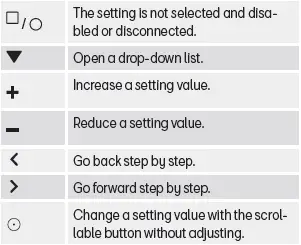
The symbols used in the system and sound settings have a consistent meaning throughout the infotainment interface. They indicate the available adjustment methods and help you recognise how a particular setting can be changed. The same operating principles apply when adjusting compatible functions in different settings menus.
Changes made to the system and sound settings are applied automatically when you close the corresponding menus. There is normally no need to confirm each adjustment separately after leaving the settings screen. Before exiting, check that the selected values correspond to your preferences, particularly when changing audio levels or other settings that affect the operation of the infotainment system.

Sound settings
- To open the audio configuration menu, select HOME >
 . This menu provides access to the sound adjustments supported by the installed infotainment system. The available controls may differ according to the vehicle's audio equipment.
The sound settings menu may contain the following functions, information and adjustment options. These controls allow you to modify the characteristics and distribution of audio playback according to your preferences and the capabilities of the vehicle's sound system:
- Equaliser. Provides controls for adjusting the tonal characteristics of audio playback. Use the available equaliser settings to modify the sound balance according to your listening preferences. The range of adjustments depends on the installed audio system.
- Position. Allows you to adjust the distribution of sound within the passenger compartment where this function is supported. These settings determine how the audio output is balanced between the available speaker positions in the Seat Ateca.
- Settings. Opens additional sound-related configuration options provided by the infotainment system. The functions available in this section depend on the vehicle's equipment and the audio features supported by the installed system.
System settings
- To access the general infotainment configuration options, select HOME >
 . The system settings menu contains the controls used to configure the display, operating preferences, communication functions and other supported features.
The system settings menu may include the following functions, information and configuration options. Their availability depends on the Seat Ateca's infotainment version, the installed equipment and the services supported in the relevant country. Some options may lead to additional menus containing more detailed adjustments.
- Screen. Provides access to the available display settings. These controls allow you to adjust supported aspects of the infotainment screen's appearance and operation according to your preferences.
- Time and date. Contains the settings used to configure the time and date displayed by the vehicle. Correct time and date information is important for infotainment functions that rely on these values.
- Language. Allows you to select the language used for the infotainment system's menus, messages and other supported interface elements. The available languages depend on the system configuration.
- Additional keypad languages. Provides options for configuring additional languages for text entry through the on-screen keyboard. These settings can be useful when entering information in more than one language.
- Units. Allows you to select the available measurement units used when displaying information through the infotainment system. The selection of units depends on the functions and regional settings supported by the vehicle.
- Voice control. Contains the available settings for the infotainment system's voice control functions. These options depend on the voice control features provided by the installed equipment.
- Wi-Fi. Provides access to the Wi-Fi functions and connection settings supported by the infotainment system. The available options depend on the vehicle's communication equipment and configuration.
- Data connection. Contains settings associated with the vehicle's data communication functions. These options may be relevant when using infotainment features or connected services that require data transmission.
- Manage mobile devices. Opens the device management interface for compatible mobile phones and other supported connected devices. This menu allows you to access the available connection management functions.
- Restore factory settings. Provides the option to return the infotainment system to its factory configuration. This operation can delete saved settings, personal information and associated user configurations. Review the consequences carefully before confirming a reset, particularly if SEAT CONNECT services, registered users or mobile keys are associated with the vehicle.
- System information. Displays information relating to the installed infotainment system. The details available depend on the equipment and software configuration.
- Copyright. Provides access to copyright notices and information about the software and licence conditions associated with the infotainment system.
- Configuration wizard. Opens the guided configuration function, where available, to assist with setting up supported infotainment options. The steps presented depend on the system's current configuration and the equipment installed in the Seat Ateca.
Adjust the volume of external audio sources
When adjusting the playback level of an external audio source connected to the Seat Ateca infotainment system, first reduce the volume of the infotainment unit itself. This precaution helps prevent an unexpectedly loud sound when the output level of the connected device or the corresponding input setting is increased. Differences between audio sources can cause noticeable changes in playback volume, even when the infotainment volume control remains at the same position.
If the connected audio source produces sound at an unusually low level, increase the output volume directly on the external device. Make the adjustment gradually and check whether the playback level becomes satisfactory. If the sound remains too quiet after increasing the device's output, change the infotainment system's input volume setting to medium or high, as appropriate. This allows the system to compensate for a low incoming audio signal without requiring an unnecessarily high main volume setting.
If playback from the external audio source is excessively loud or the sound becomes distorted, reduce the output volume on the connected device. Distortion may occur when the incoming signal is too strong for the selected input level. If lowering the external device's volume does not resolve the problem, change the infotainment input volume setting to medium or low. Adjust the levels until the audio is clear and comfortable, avoiding settings that produce distortion or sudden increases in loudness when switching between sources.
Clean the screen
The Seat Ateca infotainment touchscreen should be cleaned carefully to prevent damage to its surface. Dust, fingerprints and other marks can affect the appearance and readability of the display, but unsuitable cleaning methods may scratch the screen or damage its surface treatment. Avoid aggressive cleaning products and excessive pressure, particularly when removing marks that are difficult to wipe away. The following procedure is recommended for routine cleaning and more persistent dirt:
- Switch off the infotainment system. Before cleaning the display, make sure the system is turned off. This prevents accidental operation of touchscreen functions while the surface is being wiped and makes it easier to see fingerprints and other marks on the screen.
- Use a clean, soft cloth lightly dampened with water. Gently wipe the display surface to remove ordinary dust, fingerprints and light contamination. The cloth should be sufficiently soft to avoid scratching the screen and only slightly damp, rather than saturated with water.
- Remove stubborn dirt carefully. If marks remain after the initial cleaning, moisten the affected area with a small amount of water and gently wipe it with a clean, soft cloth. Allow the moisture to loosen the dirt instead of attempting to remove it by rubbing forcefully. Repeat the process carefully if necessary, without applying excessive pressure to the display.
NOTICE Cleaning the infotainment display while it is dry, particularly when dust or other particles are present, can scratch or damage the surface. Using unsuitable cleaning agents may also affect the screen's appearance or its protective surface treatment. Always follow the recommended cleaning procedure and avoid materials or substances that could damage the display.
- Apply only light pressure when wiping the screen. Excessive force is unnecessary and may damage the display surface or the components beneath it. Use gentle movements with a clean, soft cloth rather than pressing firmly on stubborn marks.
- Never use aggressive cleaning products or substances containing solvents on the infotainment screen. Such chemicals can damage the display and may cause the screen surface to become darker or otherwise deteriorate. Use water and a suitable soft cloth as recommended, without applying chemical cleaners that are not intended for the display.
 HOME screen
The HOME screen is the main starting point for operating the Seat Ateca infotainment system. Depending on the installed control and display unit, you can configure the arrangement and presentation of ...
 Trademarks, licenses and copyrights
Registered trademarks and licenses
Certain product names, technical terms and designations mentioned in this Seat Ateca owner's manual are accompanied by the ™ or ® symbol. These markings identif ...
Other materials:
Introduction
Fig. 16 Drivers with properly worn seat belts
will not be thrown forward in the event of
sudden braking.
Correctly fastened seat belts are among the most important safety features in the Seat Ateca. They help keep the driver and passengers in their intended seating positions, particularl ...
Stability Control
PRINCIPLES OF OPERATION
WARNING: Vehicle modifications involving braking system,
aftermarket roof racks, suspension, steering system, tire
construction and wheel or tire size may change the handling
characteristics of your vehicle and may adversely affect the
performance of the AdvanceTrac® sy ...
Using the electronic parking brake
Fig. 131 Centre console, lower part: electronic
parking brake button.
Connecting
The electronic parking brake can be applied whenever the Seat Ateca is stationary, including when the ignition is switched off. It is designed to secure the vehicle against unintended movement while par ...
